

Appearance
Preset Reference
The Presets tab offers ten ready-made easing looks. Hover any thumbnail to preview it in the strip, then click to apply. With Marker Mode checked, clicking a preset drops a curve marker onto a selected layer; with it off, the preset applies per-property to your selected keys.
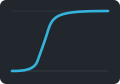
Smooth Ease
Classic ease-in-out S-curve. The reliable default for most motion.
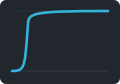
Snap
Near-instant move with a shallow settle. Punchy and direct.

Fast Start
Rapid launch, gradual finish (ease-out). Energetic departure.

Fast Finish
Gentle build, rapid arrival (ease-in). Decisive landing.
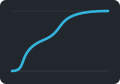
Slow Middle
Quick ends, lingering middle. Adds weight to a hold.
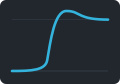
Overshoot Standard
Shoots past the target, then settles back. Lively, mechanical.
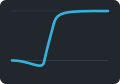
Anticipate Standard
Pulls back before launching forward. A wind-up before the action.
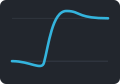
Anticipate + Overshoot Standard
Wind-up, launch, and overshoot combined. Maximum character.
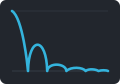
Bounce
Lands and bounces with decreasing height. Playful, physical.
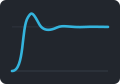
Elastic Standard
Springy oscillation that settles to rest. Toy-like, snappy.
Custom presets
Beyond the ten default presets, you can save your own curves as custom presets. Unlike a curve added to the control layer (which only exists in that comp), a custom preset is stored at the user level — it shows up in the Presets tab in every comp and project. Custom presets appear in their own collapsible Custom Presets section in the preset palette, alongside the built-ins.
Save a curve as a preset
- Open the
▼ Editoron the Animate tab and shape the curve you want — or load an existing curve from the dropdown and reshape it. - Click
✎ Save as Presetin the editor's button row. - Name the preset (CurveConductor suggests
My [CurveName], or adds a numeric suffix to avoid collisions). Hit Save. - The new preset appears in the
Custom Presetssection of the Presets tab, ready to apply like any other.
Delete a custom preset
Right-click a custom preset's thumbnail in the Presets tab to delete it. Built-in presets can't be deleted. The tooltip on a custom preset reminds you with (Custom — right-click to delete).
Share presets — Export & Import
Two icon buttons at the top-left of the Presets tab, next to the Marker Mode checkbox:
⤓ Export Custom Presets— save all your custom presets to a.jsonfile. Use this to back up your library or share it with a teammate.⤒ Import Custom Presets— load presets from a.jsonfile. If a name is already in use, the incoming one is renamed with a numeric suffix (e.g.My Snap (2)) — nothing is overwritten. After import, theCustom Presetssection auto-expands so you can see what came in.
Building a project-wide library
Develop a set of go-to curves on a real comp, save each as a preset, then Export them as a .json. Exporting presets is a great way to share curves with other animators.